See how engaged your Contacts are at a glance, using Transpond's Star Rating feature.
Who can use this feature? All Users
Available on: Free, Starter, Growth, Advanced and Ultimate
Each contact in Transpond is scored and then given a corresponding Star Rating to offer a quick summary of their engagement. You can always find the Star Rating of a contact in Transpond, next to their name:

If you use our Capsule integration, you can view their Star Rating in the Transpond Sidebar when viewing a Capsule contact.
Understanding Contact Scores
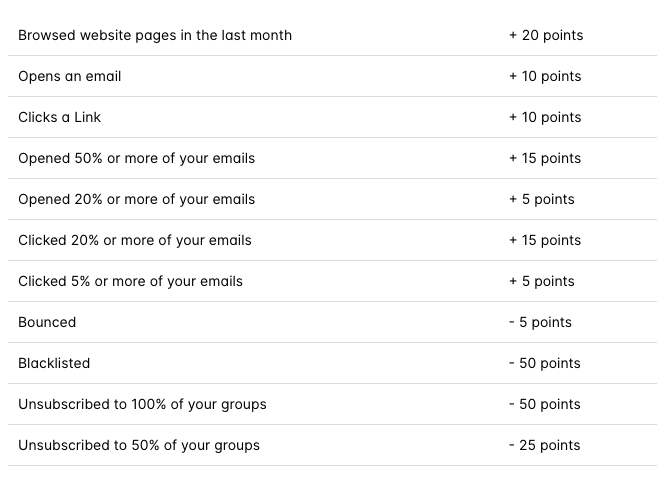
Each interaction with your content (such as opening an email or clicking a link) adds or removes points from the score, based on the action. Below is a complete breakdown of the different contact actions in Transpond and how the score is affected by them.
You can also find this breakdown of the scoring system in Transpond by clicking on the Stars wherever they appear.
Understanding Star Ratings
Using the scoring system explained above, the contact is then automatically given a Star Rating. As the points for the contact change, so does the Star Rating:
| Contact Score (points) | Star Rating |
| less than 10 | 0 |
| 10 - 20 | 1 |
| 20 - 30 | 2 |
| 30 - 40 | 3 |
| 40 - 50 | 4 |
| more than 50 | 5 |
Using Star Ratings in a Segment
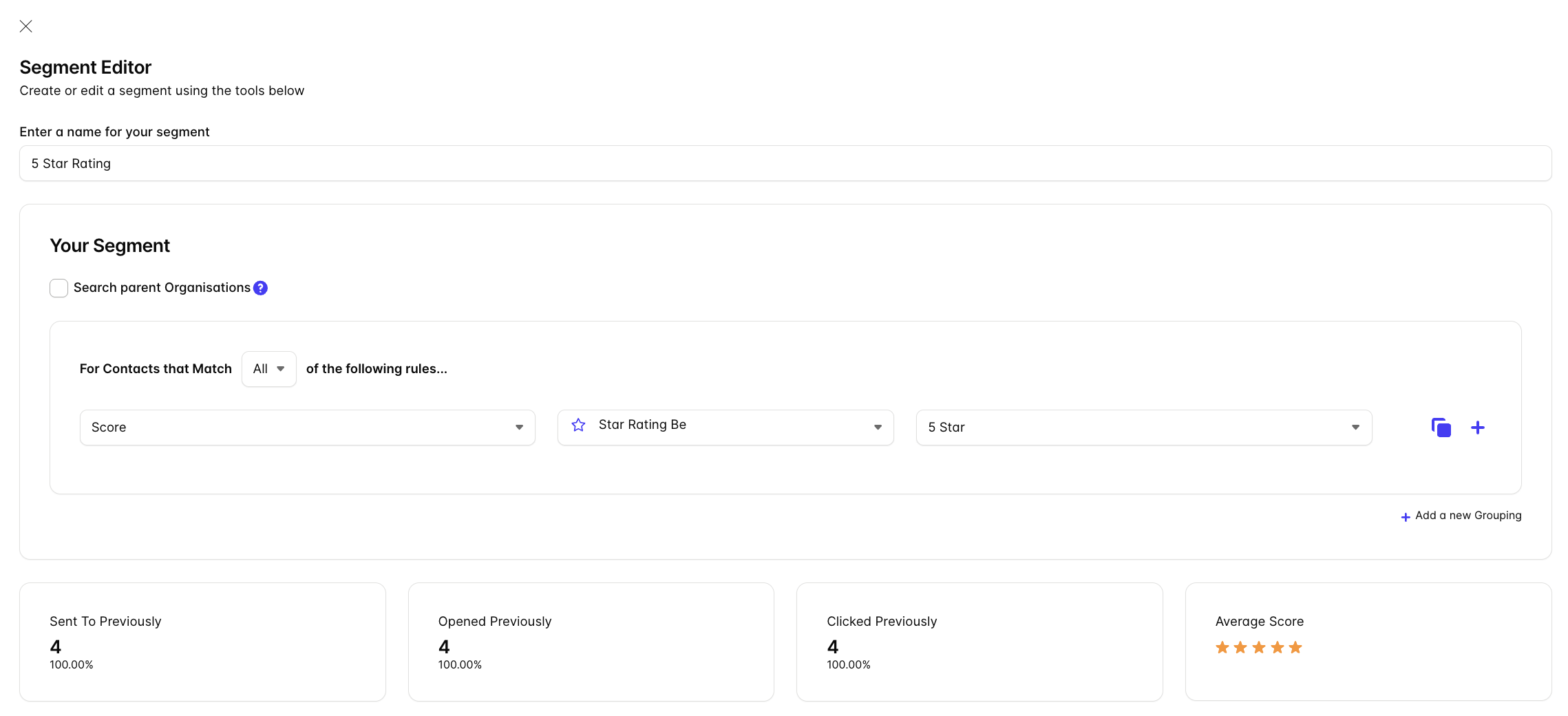
Star Ratings can be used to create Segments in Transpond. When creating the rules for your Segment, add the 'Score' field and choose your conditions from there.
The example below shows the creation of a Segment containing all contacts with a 5 Star Rating.
📙 Learn more about organizing your contacts with segments.