If you're moving from Mailchimp to Transpond, the Mailchimp import brings everything across in one go. Connect your Mailchimp account, review what we've found, and start the migration to bring your audiences, contacts, contact fields, tags, email templates, images, and draft campaigns into Transpond.
Each Mailchimp audience you keep is imported into a Transpond Group with the same name, and your contact fields are mapped to Transpond fields automatically. Your email templates and recent draft campaigns are converted into Transpond drag-and-drop templates wherever possible, with the images they use, so you can edit and send them straight away.
The result is a quick, low-effort migration: you keep the work you've already done in Mailchimp and can start using Transpond's tools to grow and engage your audience straight away.
Who can use this feature? Admins
Available on: All Plans
Connecting Mailchimp to Transpond
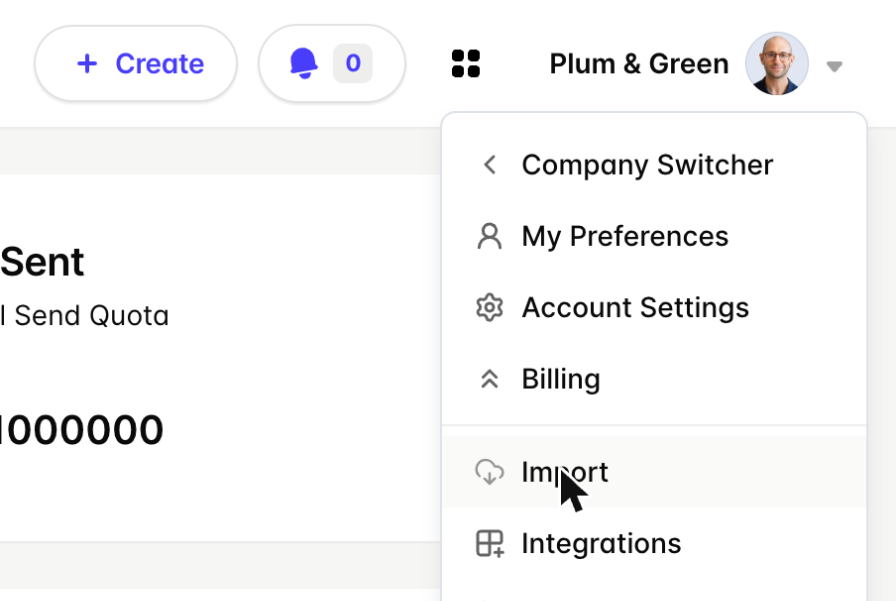
In Transpond, click your company name in the top-right corner > Import.
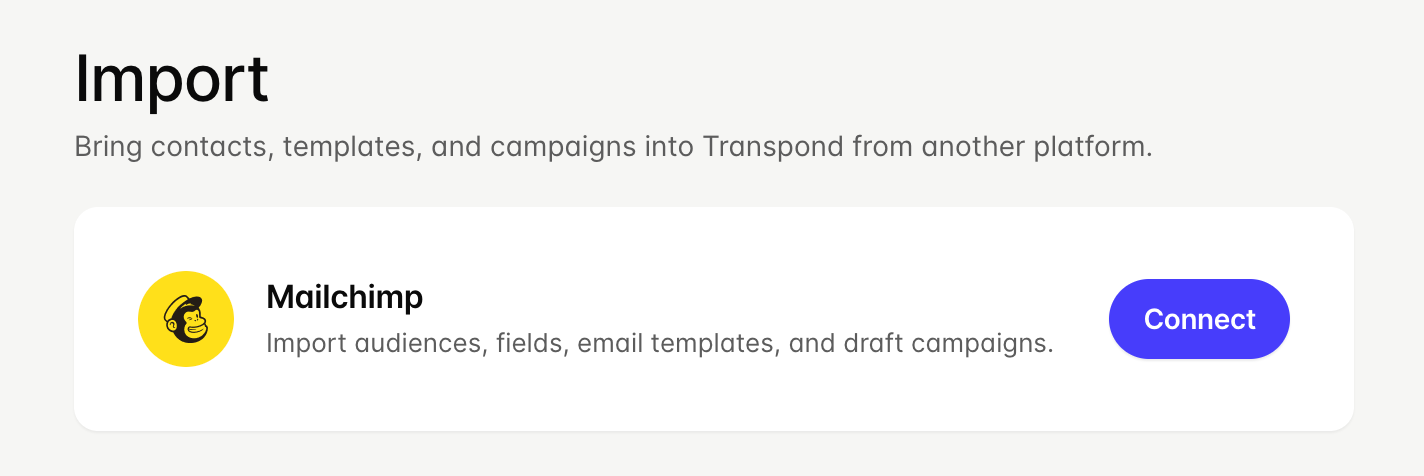
Click Connect next to Mailchimp.
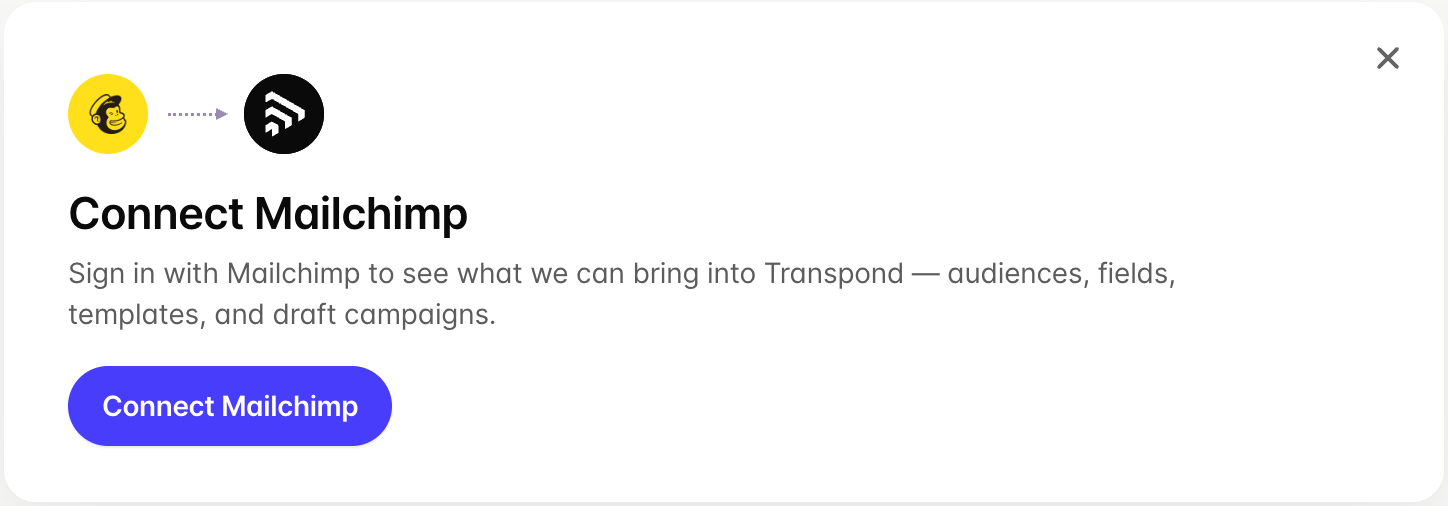
Click Connect Mailchimp.
- Enter your Mailchimp username and password, or click Continue with Google if you created your Mailchimp account with Google.
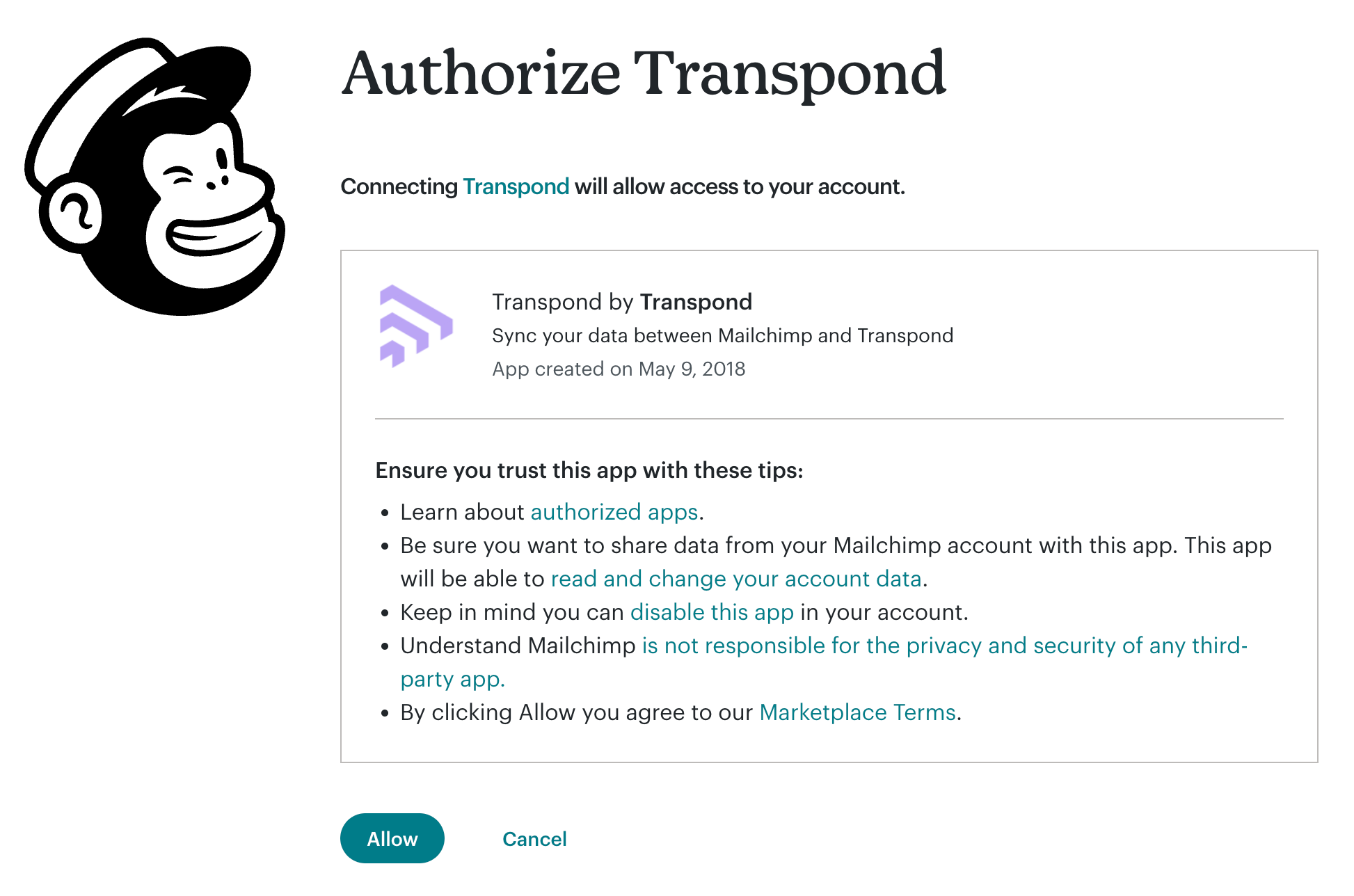
Review the integration access request and then click Allow to complete the connection.
You'll be brought back to Transpond while we fetch everything available to import from your Mailchimp account.
If you connected Mailchimp to Transpond before this import was available, you'll see the older Mailchimp integration instead. To use the new import, disconnect Mailchimp and then connect it again.
Choosing What to Import
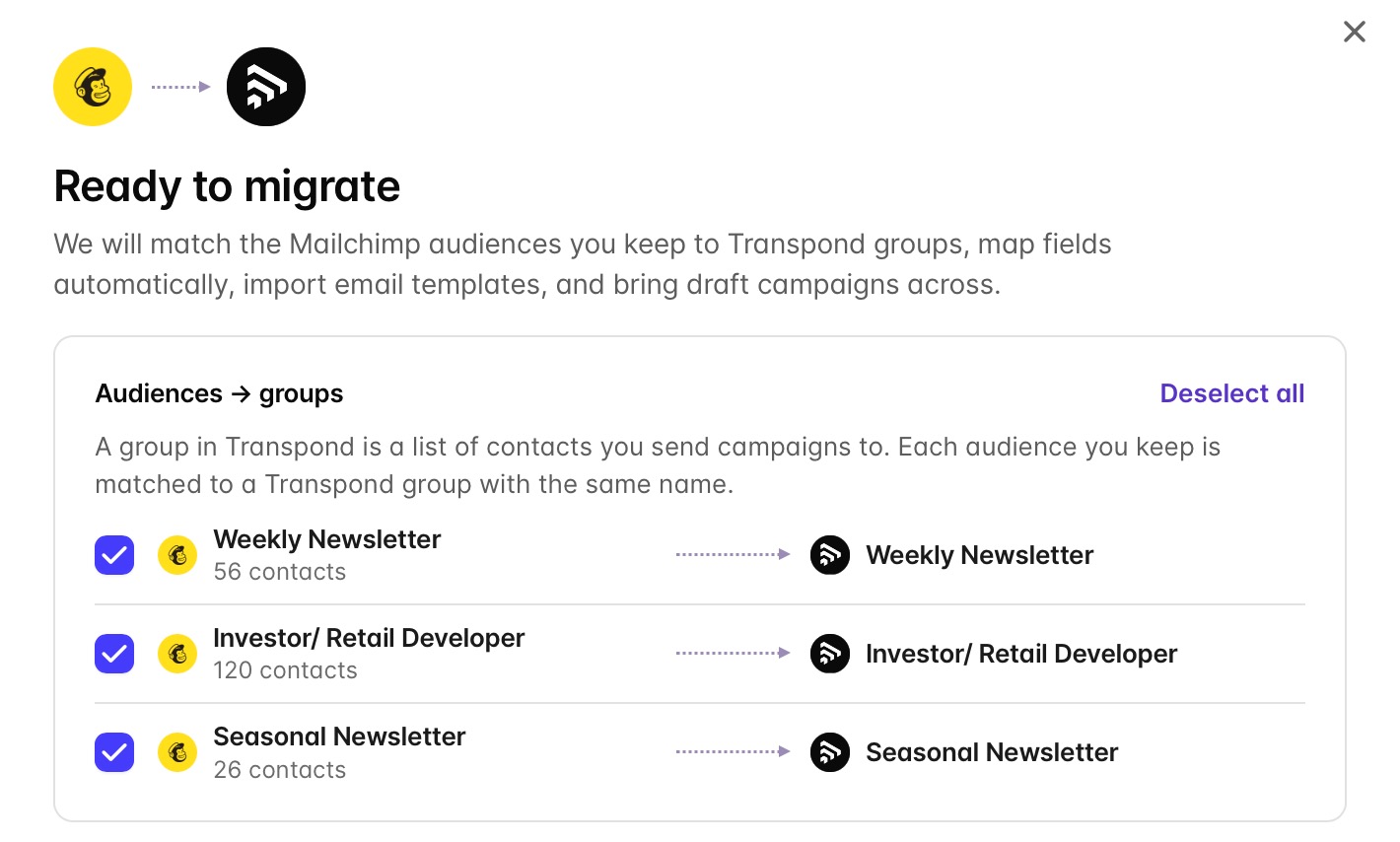
Once your Mailchimp data has loaded, you'll see the Ready to migrate screen. Most items are selected for you, so you only need to make changes for anything you'd like to add or leave behind.
- Audiences → groups: Each Mailchimp audience is listed with its number of contacts, alongside the Transpond Group it will be imported into. Uncheck any audiences you don't want to import. You need to keep at least one audience selected.
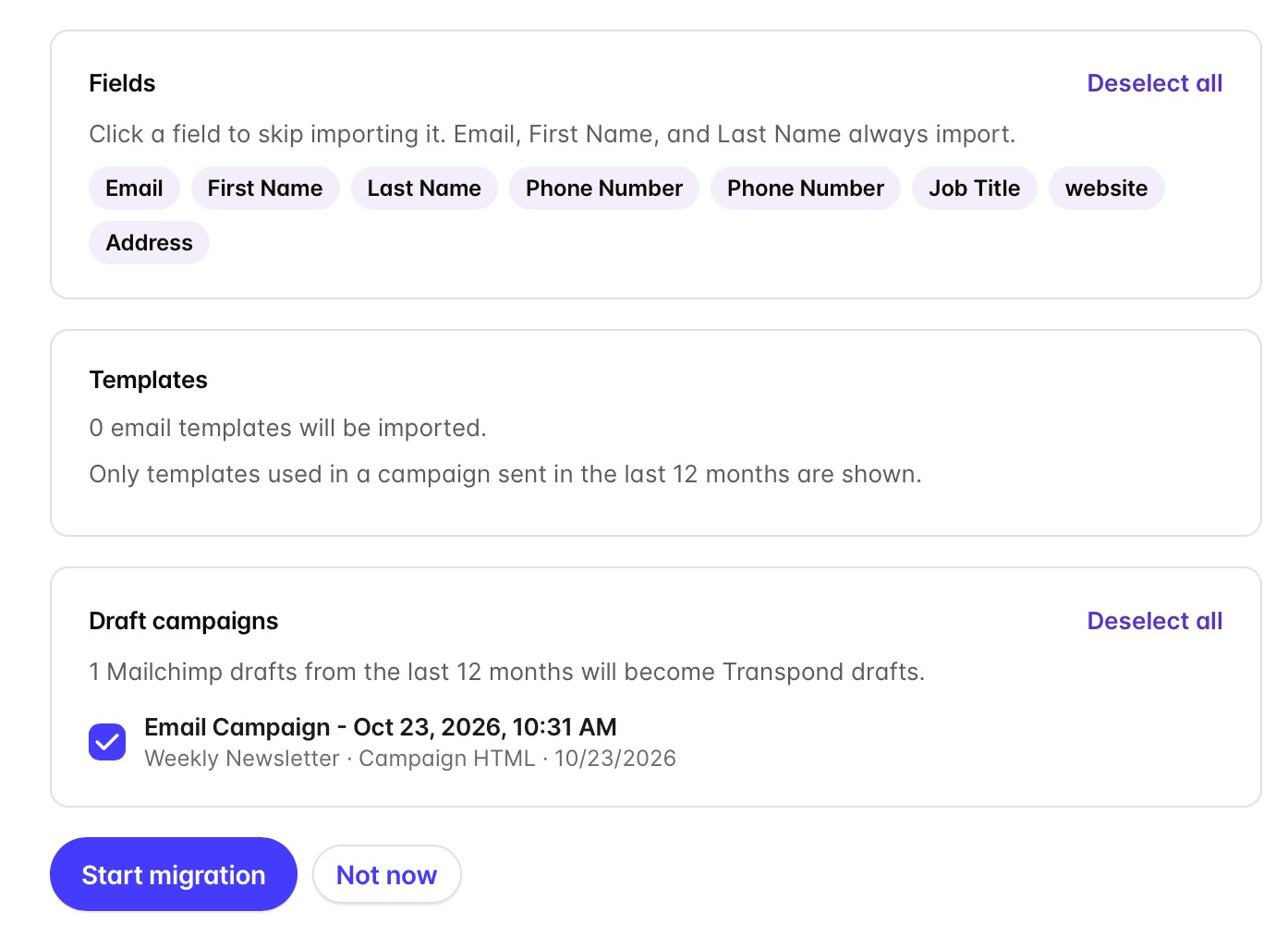
- Fields: Your Mailchimp contact fields are mapped to Transpond fields automatically. Click a field to skip importing it. Email, First Name, and Last Name are always imported. Mailchimp tags that are in use are also brought across, and if a tag with the same name already exists in Transpond, we'll use that one.
- Templates: Lists the Mailchimp templates we can import, starting with the ones you've sent most often. Click View to preview a template, and uncheck any you don't want to bring across.
Which templates appear:
- Templates you coded yourself in Mailchimp are always listed.
- Templates built with Mailchimp's drag-and-drop or new email builder are listed only if you used them in a campaign sent in the last 12 months. Templates you've sent at least twice are selected for you; templates sent once are listed but not selected.
- Templates you saved but never sent can't be imported, because Mailchimp doesn't share their design with other apps. You can recreate these in Transpond's drag-and-drop editor.
- Draft campaigns: Shows the Mailchimp draft campaigns from the last 12 months that will be added to Transpond as draft campaigns. Only drafts that belong to an audience you're importing (or that have no audience) are included.
Starting the Migration
When you're happy with your selections, click Start migration. If you're not ready yet, click Not now and come back to the Import page whenever you like.
The Importing from Mailchimp screen shows each step and how far along the import is. The migration runs in the background, so you can click Continue in the background and carry on working in Transpond.
A banner at the top of the page keeps track of progress; click View progress to open it again, or Dismiss to hide it.
When the migration has finished, the banner changes to Mailchimp import complete. Click See what we brought overto see a summary of everything that was created and updated. From the summary you can go straight to View groups, run the import again, or disconnect Mailchimp.
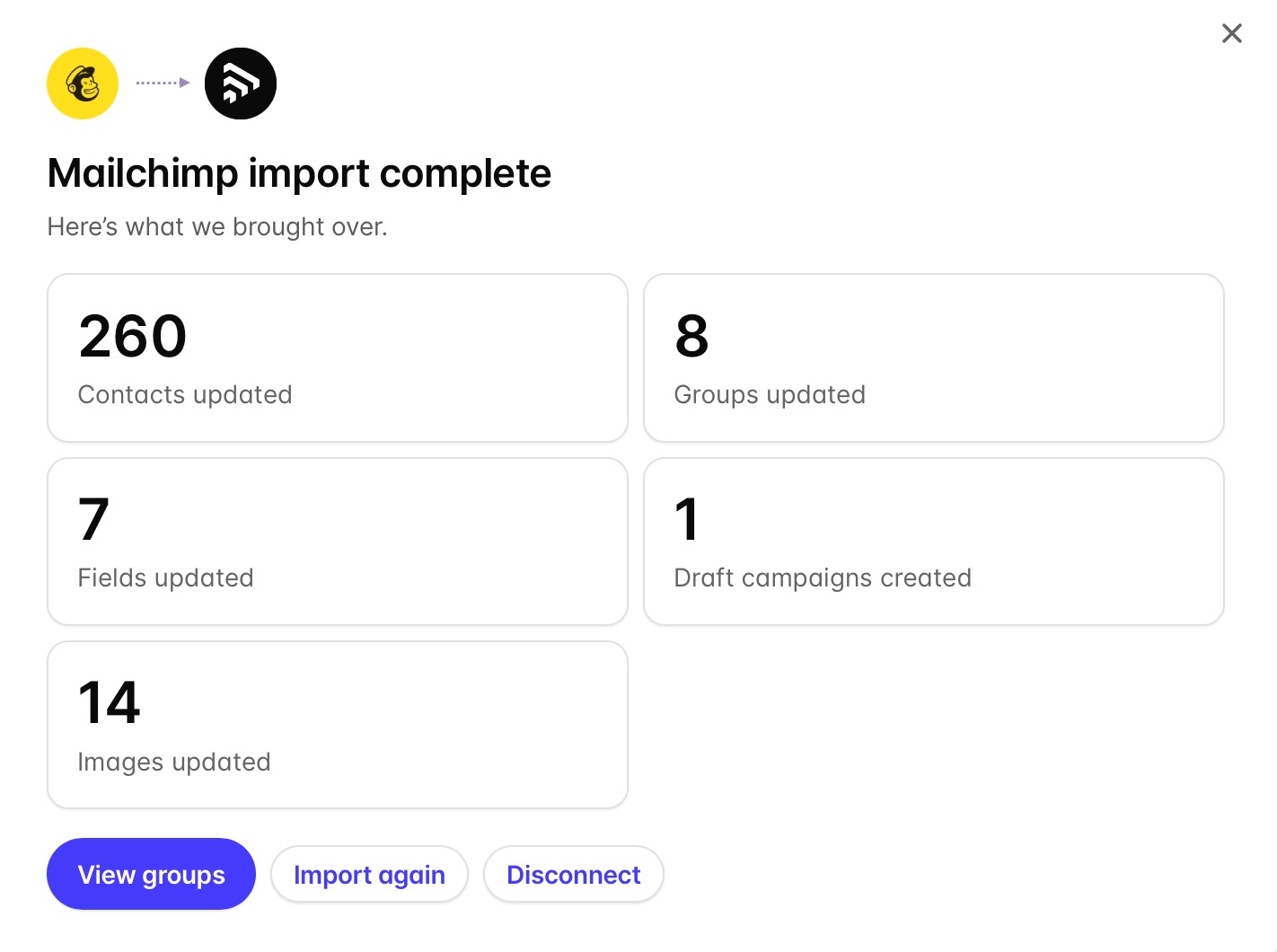
Your imported audiences appear under Contacts > Groups, your templates under Campaigns > Templates, and your draft campaigns under Campaigns.
Imported templates
Templates and drafts carry on converting to drag-and-drop in the background after the main import finishes. If you open one before it's ready, you'll see a loading page until it's done.
We keep your original wording, colors, links, and images. Any section our drag-and-drop blocks can't recreate comes through as a custom HTML block, and if a template can't be converted, we import it as an HTML template instead. It's worth checking each template before you send it.
Good to know
- Segments aren't imported. Recreate any Mailchimp segments you need in Transpond, and add them to your imported draft campaigns before sending.
- Existing contacts: The import won't change the subscription status of contacts who already exist in Transpond. If an imported email address already belongs to another Transpond Group, that contact is also added to the new Group.
- Importing again: The Mailchimp import is a one-time migration, not a contact sync. To bring across new contacts or content from Mailchimp, click Import again on the Mailchimp card on the Import page. Running the import again also restarts template conversion.
Disconnecting Mailchimp
You can disconnect Mailchimp from the import summary by clicking Disconnect.
You can also do it from the integration settings.
- Click your company name in the top-right corner > Integrations.
- Click Manage next to Mailchimp > then click Disconnect.
When you disconnect Mailchimp, any contacts, templates, and campaigns you've already imported will remain in Transpond.